
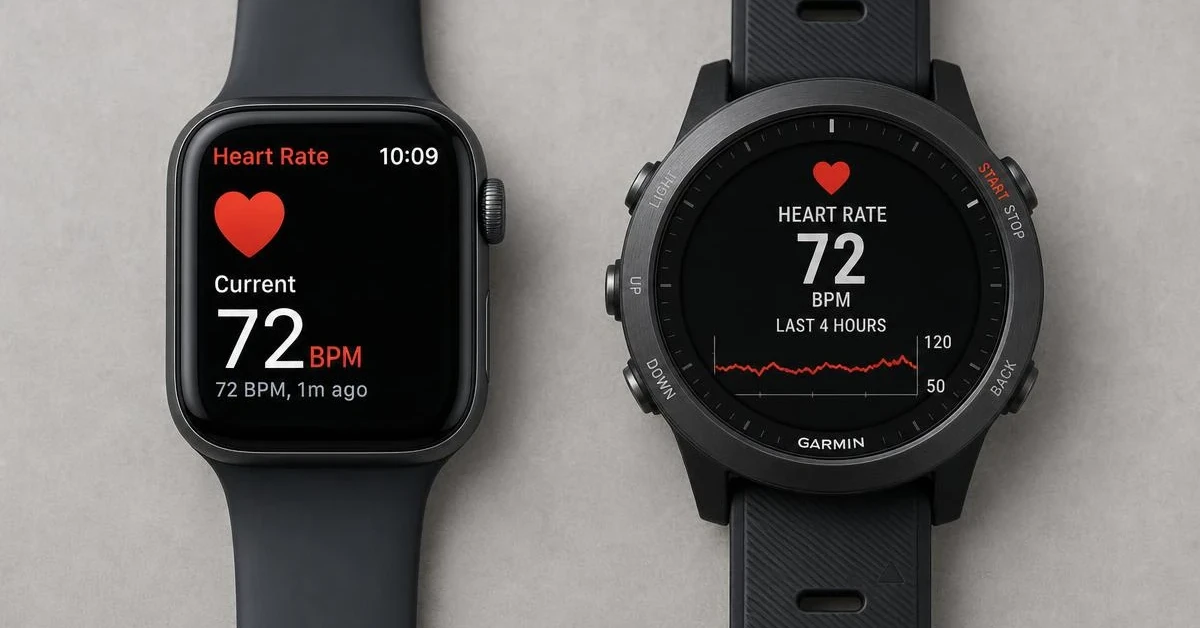
Both Default to the Same Basic Method
It's a common assumption that Garmin, as the more serious training tool, must handle heart rate zones more precisely out of the box than Apple Watch. That's not the case. Both platforms default to the same basic approach: zones calculated as a percentage of your max heart rate, with no resting heart rate factored in.
Garmin's own device manuals state it directly: default settings calculate zones as a percentage of your maximum heart rate, with Garmin auto-detecting that max heart rate from your activity data over time. Apple's support documentation describes the same underlying approach for Apple Watch: zones are a percentage of max heart rate, automatically calculated once you've entered your date of birth.
Neither default asks for your resting heart rate at all, so 2 people with the same max heart rate get identical zones regardless of fitness. Why that matters, with a worked example, is covered in why your wearable's heart rate zones are wrong. A heart rate reserve approach, the basis of the Karvonen formula, fixes it.
Where the 2 platforms differ is what happens next, if you want something more personalized than a flat percentage.
How to Switch Garmin to True Karvonen Zones
Garmin builds a heart rate reserve option directly into its settings. Switching to it takes a few taps:
1. Settings > User Profile > Heart Rate & Power Zones > Heart Rate
2. Select Max. HR and enter your tested or calculated maximum heart rate
3. Select Resting HR and use your watch's measured average, or enter a custom value
4. Select Zones > Based On, then choose %HRR
Once switched, Garmin calculates your zones from heart rate reserve, the same underlying method as the Karvonen formula. Some Garmin devices also offer a plain BPM mode under the same "Based On" menu, letting you type in exact bpm boundaries per zone if you'd rather enter numbers you've calculated yourself.
Why Apple Watch Doesn't Have This Option
Apple's own support page is explicit about what Apple Watch's automatic zones are based on: a percentage of your maximum heart rate, personalized using your health data. There's no mention of resting heart rate or heart rate reserve anywhere in Apple's documentation, and no toggle in settings to switch to one.
The only customization path Apple offers is Manual mode, where you enter raw bpm boundaries for zones 2, 3, and 4 yourself. That's functionally identical to Garmin's plain BPM option, just without the %HRR shortcut sitting alongside it. If you want Karvonen zones on an Apple Watch, you have to do the calculation somewhere else first, which is a real gap for anyone who assumed "personalized using your health data" meant the same thing as heart rate reserve.
How to Manually Enter Karvonen Zones on Apple Watch
1. Calculate your zones first using a Karvonen calculator, since there's no built-in option
2. On Apple Watch: Settings > Workout > Heart Rate Zones. Or on iPhone: Watch app > My Watch > Workout > Heart Rate Zones
3. Tap Manual instead of Automatic
4. Tap zone 2, enter its lower and upper bpm limits, then repeat for zones 3 and 4
Zones 1 and 5 aren't entered separately. Zone 1 becomes everything below your zone 2 lower limit, and zone 5 becomes everything above your zone 4 upper limit.
Worked Example: Calculate Your Zones First
Here's a 42-year-old with a resting heart rate of 65 bpm, calculated using the Karvonen formula:
| Zone | % of HRR | Range | Enter as (Apple Manual) |
|---|---|---|---|
| Zone 1 | 50–60% | 122–133 bpm | Automatic (below Zone 2) |
| Zone 2 | 60–70% | 133–144 bpm | 133 / 144 |
| Zone 3 | 70–80% | 144–155 bpm | 144 / 155 |
| Zone 4 | 80–90% | 155–167 bpm | 155 / 167 |
| Zone 5 | 90–100% | 167–178 bpm | Automatic (above Zone 4) |
Max HR = 220 − 42 = 178 bpm. Heart Rate Reserve = 178 − 65 = 113 bpm. These are the numbers you'd type into Apple's Manual zone fields, or use to fill in the %HRR fields on a Garmin. If you don't know your own resting heart rate yet, measure it here before running your numbers through the calculator above.
Which Platform Makes This Easier
Garmin gets you to Karvonen zones faster, since the %HRR option is a menu selection away once your max and resting heart rate are entered. Apple Watch requires doing the calculation externally and typing in 3 sets of boundaries by hand, a bit more setup, but not meaningfully different once it's done. Both approaches land on the same personalized numbers.
Neither platform asks for your resting heart rate as part of its automatic, out-of-box setup. If you've never gone looking for a heart rate reserve option on either device, there's a real chance you've been training against age-only zones this whole time, regardless of which one you own.
Whichever device you use, the zones you enter aren't permanent. Resting heart rate drops as cardiovascular fitness improves, sometimes 5 to 15 bpm over a few months of consistent training, which shifts your heart rate reserve and, with it, every zone boundary. Recalculating every 4 to 6 weeks, or whenever your resting heart rate moves by 3 bpm or more, keeps whichever device you're using pointed at numbers that still match your current fitness rather than the fitness you had when you first set them.
What About Polar, COROS, Fitbit, and Whoop?
Apple Watch and Garmin aren't the only options, and the other big brands split in both directions.
Polar works like a mix of the 2. Its Default zones are calculated from your maximum heart rate, the same flat-percentage approach, and can't be edited. Switch a sport profile to Free in the Polar Flow app and you can set every zone limit yourself, so you can type in Karvonen numbers the same way you would on an Apple Watch, but for all 5 zones instead of 3.
COROS offers 3 zone models: max heart rate, heart rate reserve, and lactate threshold. Pick heart rate reserve in the COROS app's heart rate zone settings and you get Karvonen zones directly, much like Garmin's %HRR option. Its EvoLab training analysis uses the lactate threshold model by default.
Fitbit, along with Google's Pixel Watch, already uses heart rate reserve. Google's help page describes zones built from the difference between your max and resting heart rate, with max heart rate estimated as 220 minus your age. The method is right. The max heart rate estimate is the weak point, and the help page doesn't describe a way to set your own zones.
Whoop also defaults to heart rate reserve, measuring your resting heart rate during sleep. Our guide to why your wearable's heart rate zones are wrong covers Whoop in more detail.
Across all of them, the same rule holds: zones are only as good as the max and resting heart rate going in. A measured max heart rate beats any formula, whichever watch you wear.
Frequently Asked Questions
Does Apple Watch use Karvonen or heart rate reserve for zones?
No. According to Apple's own support documentation, Apple Watch calculates Heart Rate Zones as a percentage of your maximum heart rate, personalized using your health data, with no heart rate reserve or Karvonen option available in settings. The only customization is Manual mode, where you enter each zone's bpm boundaries yourself.
Does Garmin default to Karvonen zones?
No. Garmin's own device manuals state that default settings calculate zones as a percentage of maximum heart rate. Garmin does let you switch the zone basis to %HRR (heart rate reserve, the Karvonen method) or %LTHR under Heart Rate & Power Zones settings, which Apple Watch doesn't offer at all.
How do I get Karvonen zones on my Apple Watch?
Calculate your zones separately using a Karvonen calculator with your age and resting heart rate, then go to Settings > Workout > Heart Rate Zones on your Apple Watch, switch to Manual, and enter the bpm boundaries for zones 2, 3, and 4 directly.
How do I switch my Garmin to heart rate reserve zones?
Go to Settings > User Profile > Heart Rate & Power Zones > Heart Rate on your watch, enter your max and resting heart rate, then select Zones > Based On and choose %HRR.
This article is for informational purposes only and does not constitute medical advice. Consult a physician or certified fitness professional before starting a new exercise program.